as a
unix/linux system admin, my main text editor is
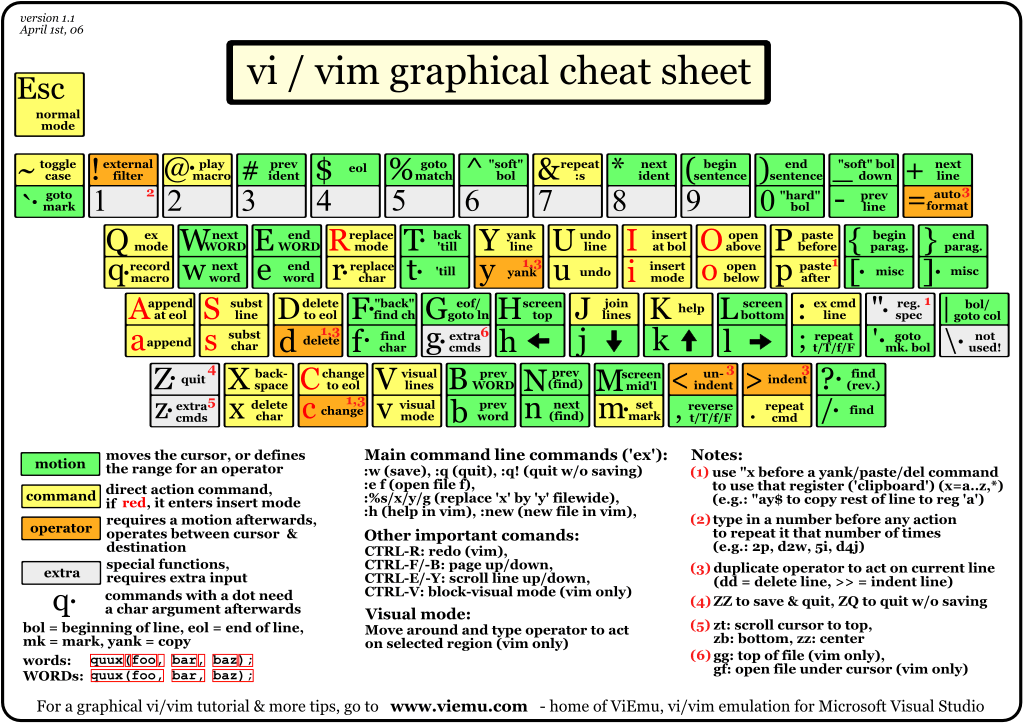
vi/vim, since it is available in most of the unixes. still remember when i first started using it, not really an easy job man! but now i'm quite comfortable with it and would like to share my top 10 tips when dealing with this editor, in no particular order:
1. undo & redodon't be surprise that
vi also have undo & redo capabilities. but for
vi is only one level undo. not really sure how many level for
vim, for sure more than
vi. just press
u to find out.
Esc + u or
:u to undo
Ctrl + r to redo
2. search patterna few ways to search a pattern in vi:
/pattern search down for pattern
?pattern search up for pattern
pressing
n or
N to go to the next or previous matching pattern
press
* or
# search for a pattern under the cursor
pressing
* or
# to go to the next or previous matching pattern
3. search & replacesearch & replace is quite important in my job where sometime i need to do a bulk replacement
:s/pattern/new_patten/ replace a pattern with new pattern
:1,$ s/pattern/new_patten/g g for replace all occurrences of pattern
:1,$ s/pattern/new_patten/c c for confirm replace
1 start from line 1
$ end at last line
Read more...
4. go to specific line
do you hate when you run a scripts, an error occurred in specific line!
this is how you go directly to the line to find out what went wrong
:n will go to line n (eg: :69 will bring your cursor to line 69)
:se nu or :set number will display line number
:.= shows current line number
:= shows number of line in file
Ctrl + g shows file name, current line number, total lines in file & % of the file location
5. vi few files
i'm sure sometime you need to edit several files at once. especially those log files.
while you are in vi, you can open up other file using:
:split other_file to open other file & will split into 2 screens
Ctrl + w + w to switch between the files
while in command prompt, simply:
$ vi file1 file2 file3
:n edit next file (file2)
:n edit next file (file3)
:rew rewind to the first file (file1)
6. shell access or run a command
while editing a file in vi, you can also access shell to run specific commands without quiting from vi
:shell will gives you a command prompt, type exit when you done with the shell, will return back to vi
or simply use :!command to execute the command
7. command output into vi
don't waste time to copy & paste the command output, instead redirect it into the file
:r!cat /etc/passwd will inserts content of /etc/passwd into the current file
8. recovering your file
life is not perfect, sometime something goes wrong while you are editing your file, eg: power failure or lost connection. indeed you can recover it back by using:
$ vi -r your_filename
9. word completion
for me this feature is quite useful for developers since they most likely repeating the same words/patterns:
type a few characters of the word and then keep on pressing Ctrl + p or Ctrl + n until you find the match, but make sure the words/patterns are already there in the file.
10. get help, don't panic!
if you get lost or no idea how to do things in vi, don't panic! get help
use :h or :help to access the main help file
to go directly to specific help, give an argument to the :help command
or to search for help use :help any_word eg: :help me will bring you to the line which contains word me, pressing Ctrl + d to see matching help entries for me.
:help!
E478: Don't panic!
and of course there are a lot more vi tips out there!
happy vi-ing :)
note: certain tips are not working with vi, only for vim!